Versioning and Releases
Publish a versioned installation package from your project's fork using the existing Release GitHub Actions workflow. The workflow determines the version from commits, generates release notes, creates a GitHub Release, and attaches the DHIS2 installation ZIP.
The current workflow is started manually. Pushing changes or merging reviewed work into main does not publish a release automatically.
1. Understand the release files
| File | Responsibility |
|---|---|
.github/workflows/release.yml |
Defines the manually triggered Release workflow, its runtime, and GitHub permissions. |
release.config.js |
Configures the release branch, commit analysis, changelog, packaging, tags, and release asset. |
src/extensions/extensionConfig.js |
Supplies EXTENSION_NAME and optional application branding. |
version.js |
Writes the app version, core version, commit revision, manifests, and configured icon. |
package.json |
Provides the compilation and packaging scripts. |
The included workflow runs on an Ubuntu runner, sets up Node.js 24 and Yarn, installs dependencies, and runs npx semantic-release. Its release branch is main.
2. Set your project's extension name
Before the first project release, edit the existing setting in src/extensions/extensionConfig.js. For example:
const EXTENSION_NAME = "community-health";
Keep the existing exports and other settings in that file. Choose a stable name suitable for a Git tag, using letters, numbers, and hyphens.
With this example name, release.config.js uses:
| Item | Project release behaviour |
|---|---|
| Tag | community-health-v${version}, for example community-health-v1.2.3 |
| Changelog | COMMUNITY-HEALTH_CHANGELOG.md |
| Release asset | dist/icv3.zip, labelled iCapture installation file |
| Release commit | Updates the project changelog with a chore(release) message. |
Keep the extension name stable after releasing: changing it also changes the tag pattern and the release history the tool recognises.
When EXTENSION_NAME is empty, the configuration uses the core release path instead: the default version tags, CHANGELOG.md, and package-version updates through the npm plugin with npm publishing disabled. For a project extension, set the extension name so its release history is separate from the core version.
3. Prepare reviewed changes
- Test the forms and complete Testing and Troubleshooting.
- Commit changes using Conventional Commits and Commitizen.
- Complete the project's review process so the intended changes are available on
mainin your fork. - Check that the extension name and release configuration are included in those changes.
The next version comes from the commits since the last release tag matching the configured format. Fixes normally produce a patch release, features a minor release, and breaking changes a major release. If several apply, the highest release type wins. Documentation-only changes do not normally produce a release by themselves. See the commit analyzer rules.
Let the release workflow determine the version. Do not manually change package.json or create a version tag to request the next project release. For a new tag history, the first version follows semantic-release's initial release policy.
4. Enable the workflow in your fork
-
Open Actions in your project's fork.

-
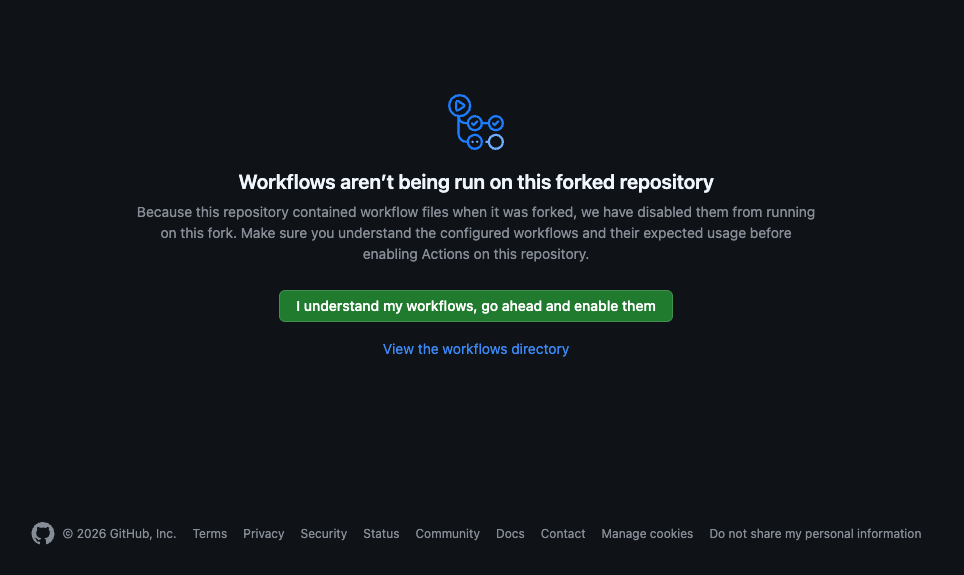
If workflows are disabled, select I understand my workflows, go ahead and enable them.
-
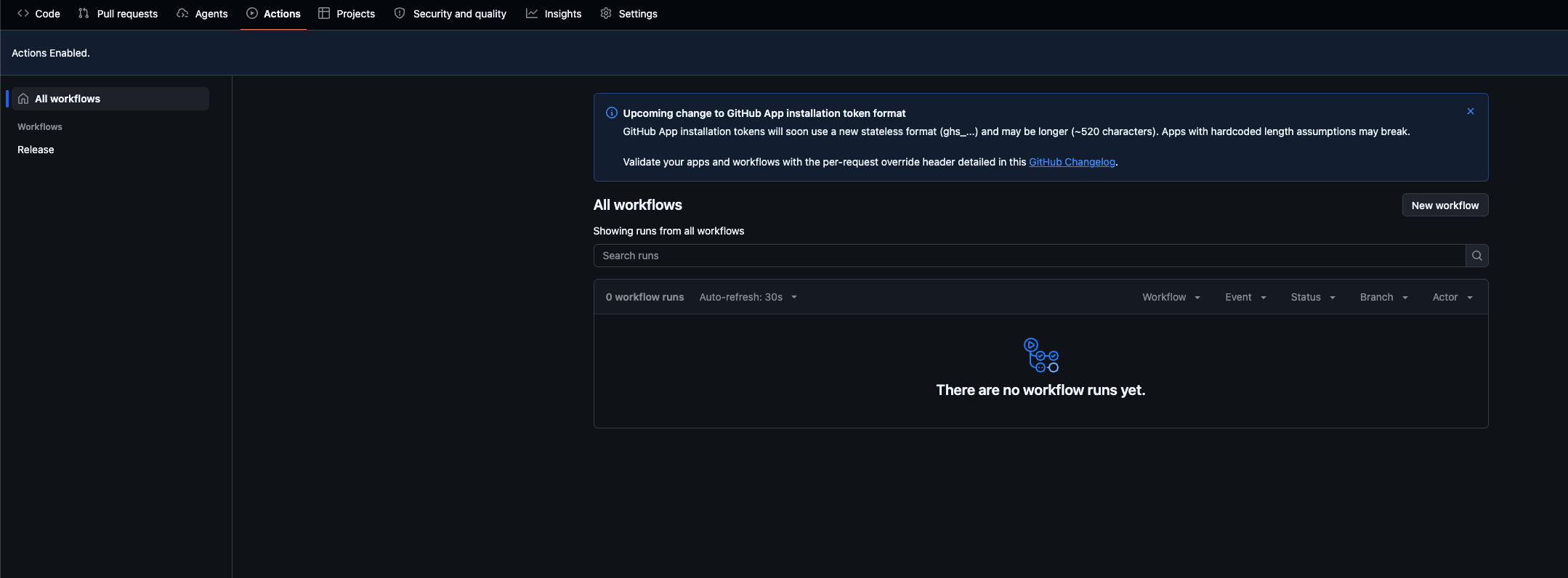
Check that Actions Enabled is displayed and Release appears in the workflow list.
5. Run the release
-
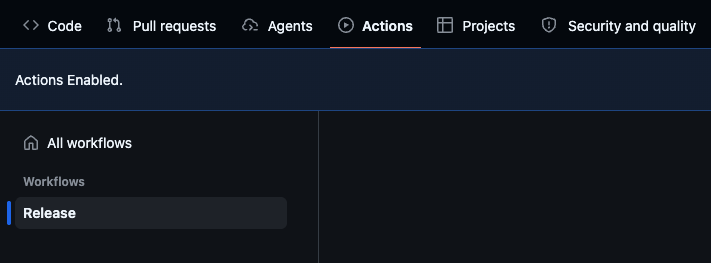
Open Actions in your project's fork and select the Release workflow.
-
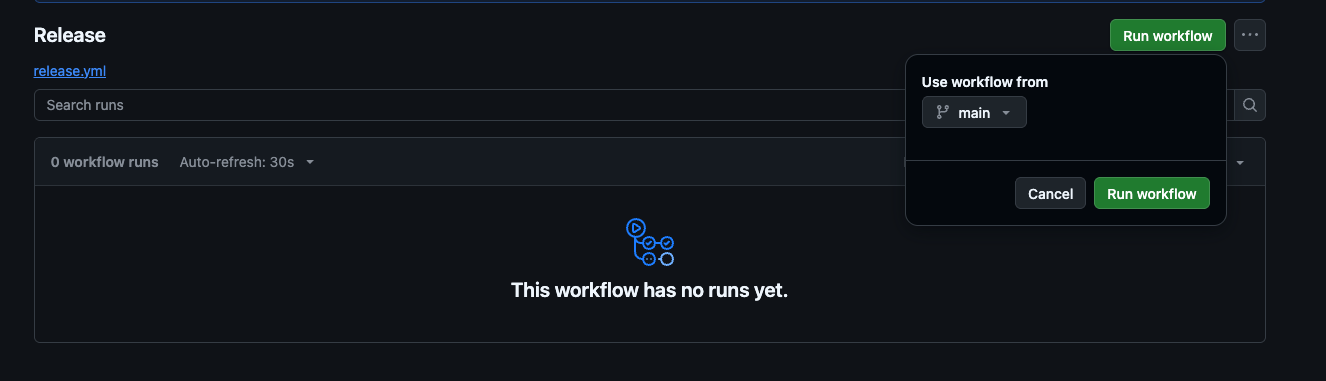
Select Run workflow, choose main under Use workflow from, then select Run workflow in the dropdown to start it.
-
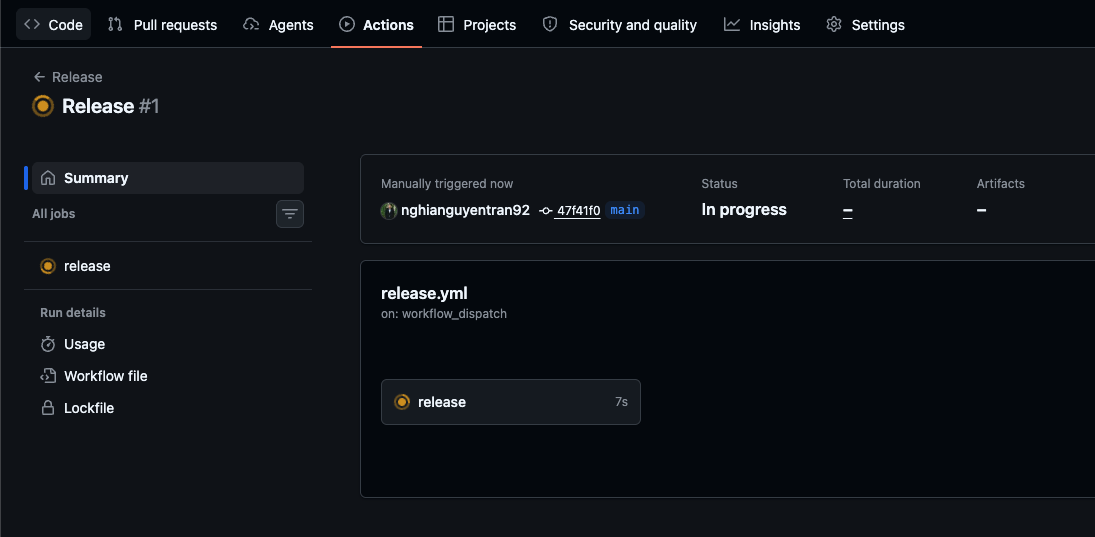
Open the new run. Its summary shows In progress while the release job is running.
-
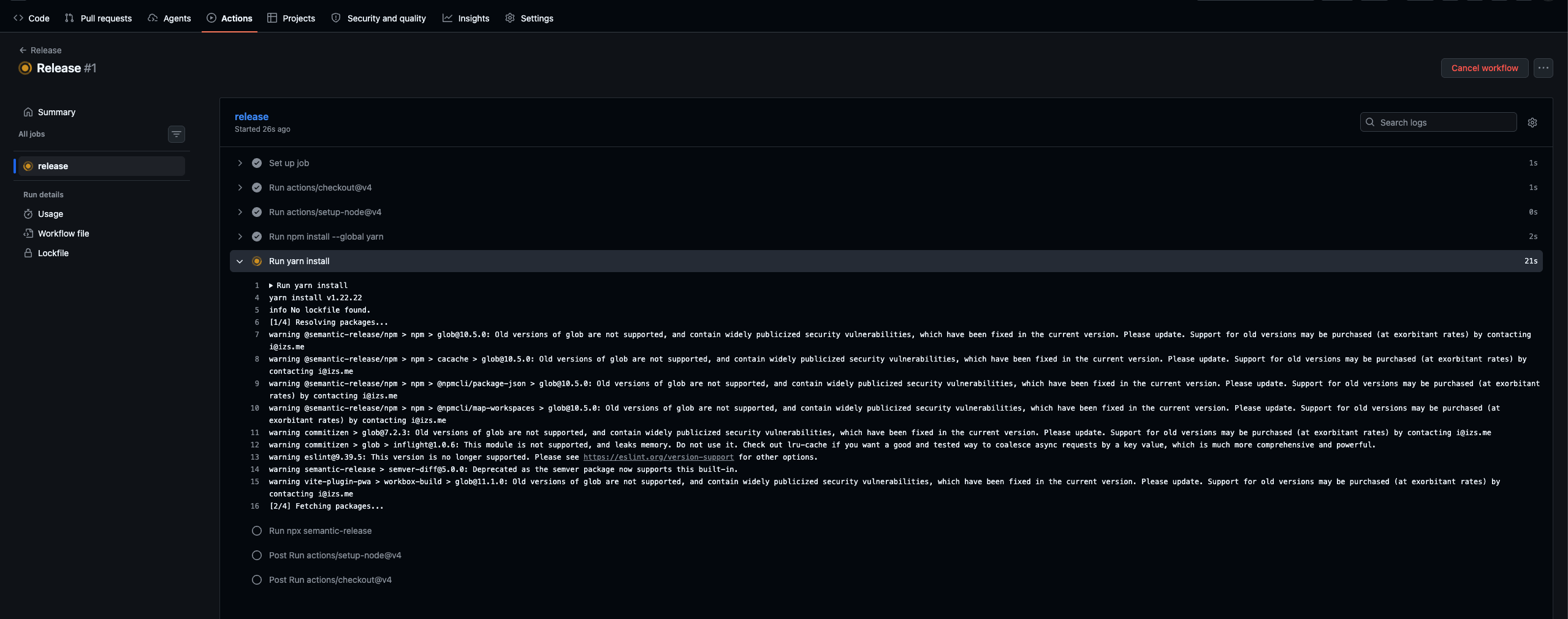
Select the release job to view its steps and logs.
-
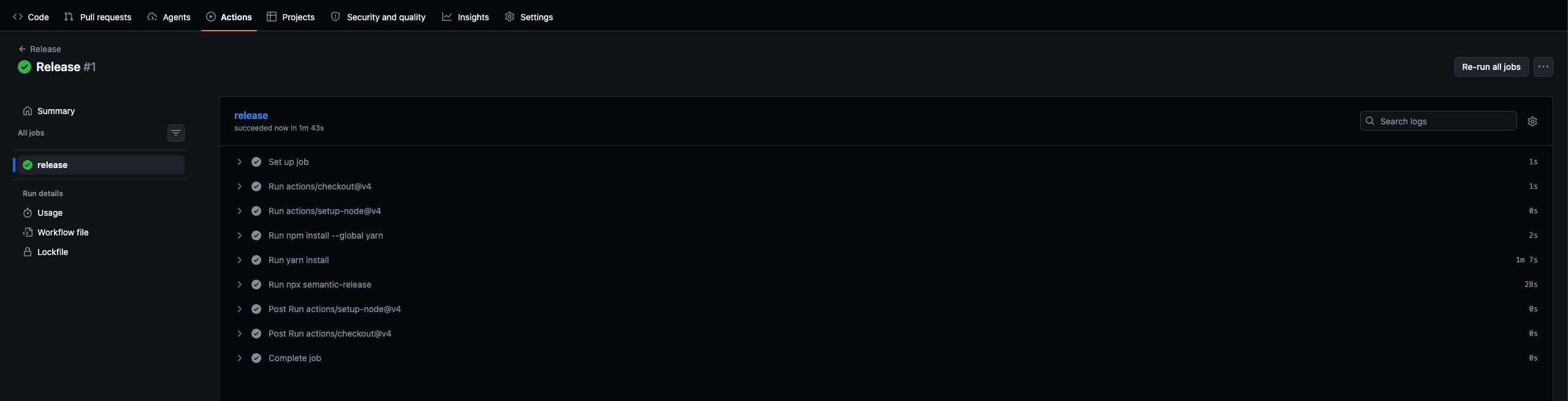
Wait for the job to finish. A green check and succeeded indicate that the workflow completed successfully.
Continue to the next section to find the published release and its installation package.
6. Download and install the release package
- Open Releases in your project's repository.
- Open the release with the expected project tag and version.
- Read its release notes.
- Under Assets, download icv3.zip, labelled iCapture installation file.
- Install this ZIP in a test DHIS2 instance through App Management.
- Test the installed release before installing the same package in the intended deployment environment.
GitHub also offers Source code (zip) and Source code (tar.gz). Those are source archives; use the attached icv3.zip for DHIS2 installation.
Publishing a GitHub Release does not install the app into DHIS2. Follow Install iCapture v3 in DHIS2 for that step.
7. Understand the recorded versions
For a project extension, the application version comes from the release version, while coreVersion comes from the core package.json version. The project release configuration commits its changelog; it does not update package.json to the project release version.
Use the release tag, GitHub Release, attached ZIP, and installed app information to identify a deployment. Record the installed release and retain the previous installation ZIP for your project's rollback procedure.
Troubleshooting
| Problem | What to check |
|---|---|
| Run workflow is missing | Confirm Actions is enabled, you have write access, and the default branch contains the workflow with workflow_dispatch. |
| The job succeeds but creates no release | Read commit analysis in the logs; there may be no release-triggering commits since the last matching tag. |
| An unexpected version or tag is selected | Check EXTENSION_NAME, matching release tags, and the commits being analysed. The highest qualifying change determines the increment. |
| Release publishing or changelog push is denied | Ask the maintainer to check workflow token permissions and repository/organisation rules for release creation and automated commits. |
| The app fails to compile | Read the first compilation error in the release logs and correct the source before rerunning. |
| A release has no installation asset | Check the packaging and GitHub publishing logs for dist/icv3.zip; source archives are not a replacement for this file. |
The release configuration is documented in semantic-release configuration. Project-specific behaviour comes from your fork's release.config.js and workflow file.